Ever lost track of what you've paid for on s.id Shop? Now you can view your complete transaction history with just a one-time email verification — no account needed.
What is Transaction History?
Transaction History is a summary page of all transactions you've ever made on s.id Shop using a single email address — whether as a guest or a registered user.
What you can see here:
- A list of all transactions with their status and amounts
- Search by transaction number
- Full details of each transaction — payment method, subtotal, fees, and discounts
Why do you need a Magic Link?
To protect your privacy, your transaction history can't be opened by just anyone. The system uses a Magic Link — a unique link sent to your registered email — as proof that you own that email address.
How to access it — 4 easy steps
Step 1 — Open your transaction page and click the menu. Open the transaction link you received after checkout. In the top right corner, click the ≡ icon then select Transaction History.
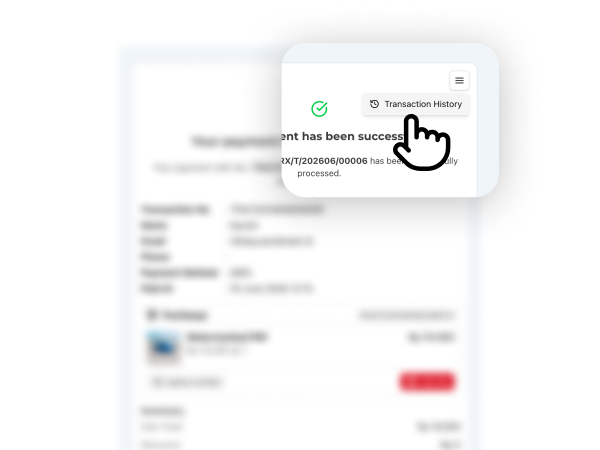
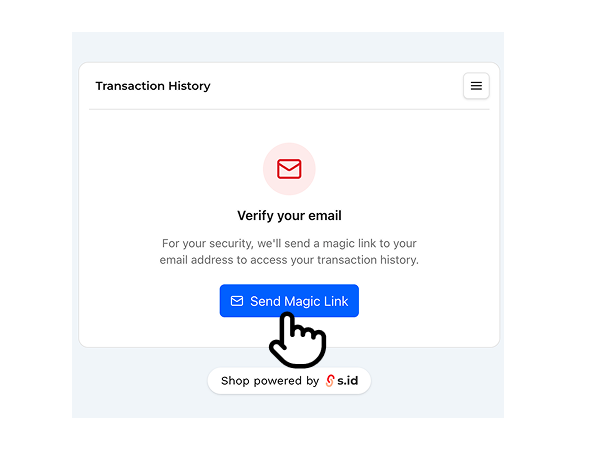
Step 2 — Request a Magic Link A verification screen will appear. Click the Send Magic Link button — the system will send an email to the address you used during checkout. Once clicked, a confirmation appears that the link has been sent. No response? Wait 1 minute, then you can click the button again to resend.
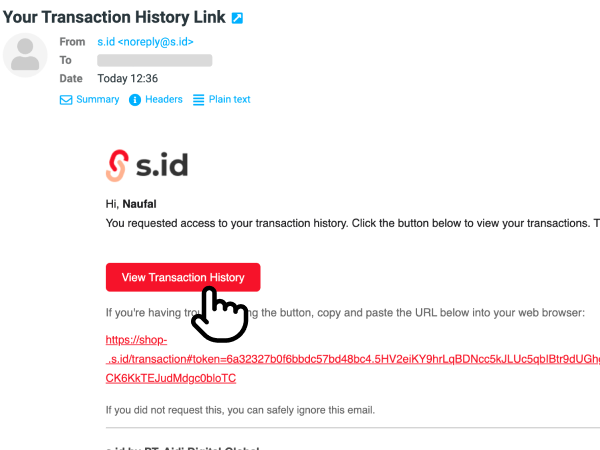
Step 3 — Click the link in your email Open your inbox and look for an email titled "Your Transaction History Link" from noreply@s.id. Click the View Transaction History button. The link will open your Transaction History page directly in your browser. This link is valid for 1 hour — after that, you'll need to request a new Magic Link.
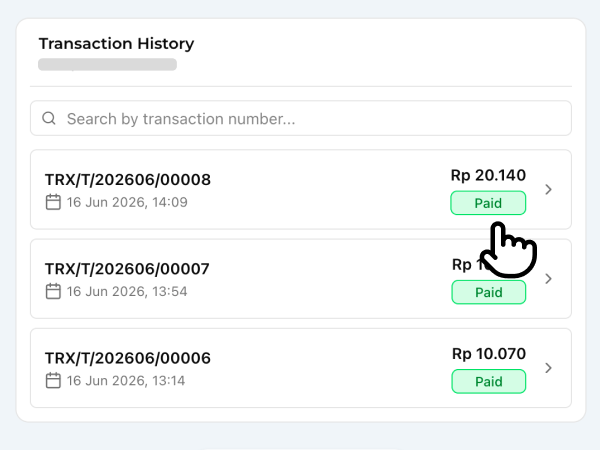
Step 4 — View your transaction history The Transaction History page opens immediately with all transactions linked to your email. Click any transaction to view its full details.
What's on the Transaction History page
The page displays:
- Email — your verified email address, shown below the title
- Search bar — search by transaction number (e.g. TRX/T/202606/00008)
- Transaction list, each row containing:
- Transaction number
- Transaction date and time
- Total payment
- Status (Paid, Unpaid, Canceled, Invalid)
- Pagination info — if you have more than 20 transactions, a note reads "Showing X of Y transactions."
Transaction detail
Click any transaction in the list to open its summary.
Information displayed:
- Transaction number and status
- Transaction date and date paid (if completed)
- Payment method
- Subtotal, service fee, payment fee, and discount (if any)
- Grand total
- View full transaction button — opens the full payment page with item details
Click Back to history to return to the list.
Magic Link expired or not received
Link expired — If you open the link more than 1 hour after it was sent, the page will show "This link is invalid or has expired." Go back to your transaction page and request a new Magic Link.
Email not received:
- Check your Spam / Junk folder
- Make sure the email you're using matches the one used at checkout
- Wait a few minutes — there may be a slight delay in email delivery
- If it still hasn't arrived after 5 minutes, you can request again (at least 1 minute after the previous request)
Button inactive / error — If you see the message "Please wait a moment before requesting again", wait 1 minute and try again.
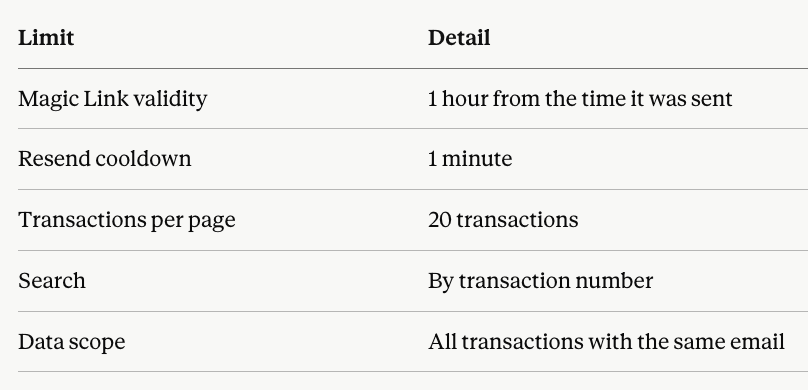
System limits