
One of the biggest reasons people abandon online checkouts is a clunky process having to register an account first, fill in a bunch of details, verify your email, and only then finally pay. Luckily, s.id Shop skips all that friction. You can check out instantly without any account at all, or sign in with your s.id account if you'd rather keep a tidy record of your purchases. Here's how it all works.
Two Ways to Check Out
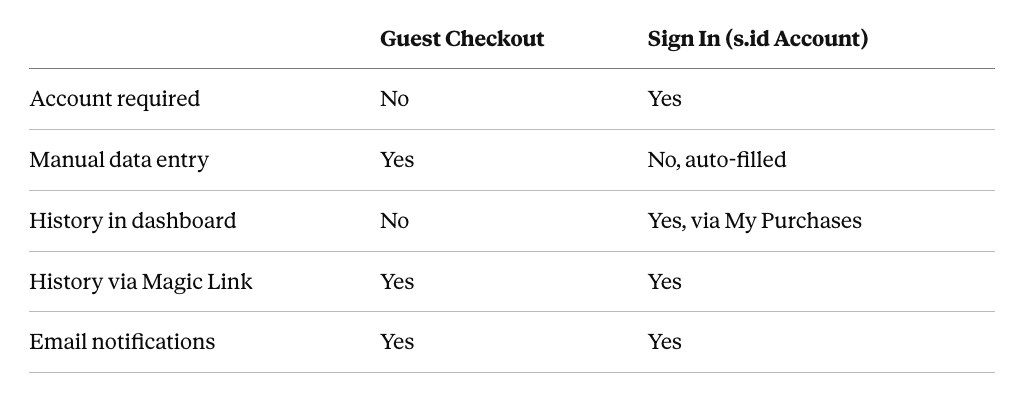
When you reach the Info step, s.id Shop gives you two options:
The Checkout Flow: Just 3 Steps
Checkout on s.id Shop is broken into three stages, shown as a step indicator at the top of the screen:
1. Cart Click the cart icon on the store page to open your cart. Here you can adjust item quantities, remove items you no longer want, and review a summary of your Sub Total, Discount, Payment Fee, and Grand Total. Once everything looks right, click Continue →.
2. Info This is where you choose whether to check out as a guest or sign in with your s.id account (more on that below).
3. Payment The final step — pick your payment method and complete the transaction.
Guest Checkout: Fast, No Registration Needed
If you'd rather skip creating an account, the Guest Checkout tab is selected by default when you land on the Info step. Just fill in three fields:
- Full Name (required) — this is the name that will appear on your invoice
- Email (required) — your invoice and payment confirmation will be sent here
- Phone (optional) — only required if you choose to pay with a credit or debit card, as this is a security requirement from the payment provider
Once done, click Continue → to proceed to the payment page. As a guest, you'll still receive an invoice email once your payment goes through. If you need to check your purchase history later, you can use the Transaction History feature via Magic Link, accessible from the transaction page.
Checking Out With an s.id Account: More Convenient for Repeat Purchases
If you already have an s.id account, just click the Sign In tab on the Info step. A login window will appear with several sign-in options:
- Continue with Email
- Continue with Google
- Continue with Apple
- Sign in with e.id
Once you're logged in, your account details — name, email, and phone number — are filled in automatically, so there's no need to retype anything. If you ever want to switch accounts, there's a Sign out? button right there in the same form. Once your info looks good, click Continue → to move on to payment.
How to View Your Purchase History
How you view your transaction history depends on which checkout method you used.
If you have an s.id account, go to Dashboard s.id → My Purchases. There you'll find every purchase linked to your account, complete with invoice numbers and item details, and you can search for a specific transaction using the Search Query field.
If you checked out as a guest, the process is a bit different: open the transaction page (the link you received after checkout), click the menu icon (≡) in the top-right corner, then select Transaction History. The system will ask you to verify your email via a Magic Link, which stays valid for 1 hour.
So Which One Should You Choose?
Go with Guest Checkout if:
- You don't have an s.id account and don't want to create one
- This is a one-time purchase and you don't need centralized history
- You want the fastest process possible, no login required
Go with Sign In if:
- You shop at s.id Shop often and want all your history in one place
- You want direct access to My Purchases in your dashboard without needing a Magic Link every time
- Your account details are already saved and you don't want to re-enter them at every checkout
Either way, pricing and discounts stay exactly the same for both guests and signed-in users — so there's no downside on price no matter which you pick.