
How to Create an s.id Account: A Simple Guide
Want to create short links, QR Codes, or microsites? Learn how to create an s.id account step by step, from registration and email verification to exploring various digital tools.
In today's digital world, sharing information through links has become an essential part of everyday activities. Whether you're sharing social media profiles, registration forms, business promotions, or important resources, having links that are easy to access and share makes everything more convenient.
One platform that can help simplify these activities is s.id. With s.id, you can create short links, generate QR Codes, build microsites, and access various digital tools through a single account.
Before exploring these features, you'll need to create an s.id account. The registration process is simple and can be completed online using your smartphone or computer.
What Is s.id?
s.id is a digital platform that provides tools to help individuals and businesses share information and manage their digital activities more efficiently.
With s.id, you can shorten long URLs into memorable links, generate QR Codes for online and offline sharing, and create microsites to display multiple links and information on a single page.
The platform is suitable for students, content creators, entrepreneurs, businesses, event organizers, and anyone looking to simplify their digital presence.
How to Create an s.id Account
If you're new to s.id, follow these simple steps to create your account.
Step 1: Visit the Official s.id Website
Open your preferred browser on your smartphone or computer and visit https://s.id.
Make sure you're accessing the official s.id website to ensure a secure registration process.
Step 2: Click Create account
On the s.id homepage, find and click the Create account button to begin creating your account.
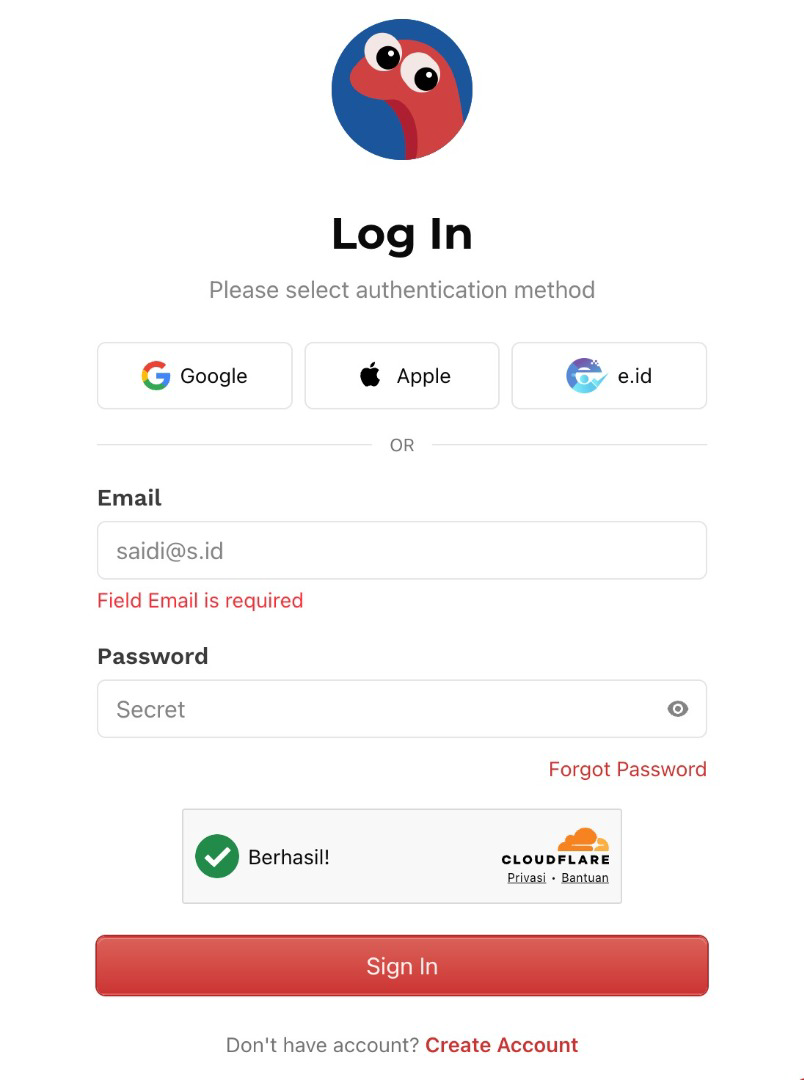
You will be directed to the registration page, where you can start the account creation process.
If you want to speed up the process, you can sign in using Google, which will then take you directly into s.id.
Step 3: Complete Your Registration Information
Enter the required information in the registration form and follow the instructions provided.
Make sure to use an active email address that you can access, as it may be needed for account verification and future account management.
Once all the required information has been entered correctly, continue the registration process by following the on-screen instructions.
Step 4: Verify Your Email Address
After completing the registration process, check the inbox of the email address you used to sign up.
If email verification is required, open the verification email from s.id and follow the instructions to complete your account verification.
If you don't receive the email, check your Spam or Junk folder. You can also try using the Resend Email feature to request another verification email.
Step 5: Log In to Your s.id Account
Once your registration and verification are complete, return to the s.id website and log in using the available login method.
After successfully signing in, you can access your s.id dashboard and start exploring the platform's digital features.
What Can You Do with an s.id Account?
Once you've created your account, you can start using various features available on s.id.
1. Create Short Links
Turn long URLs into shorter, cleaner, and more memorable links. You can also customize your short links based on availability and the platform's terms of service.
2. Generate QR Codes
Create QR Codes that make sharing links easier, whether through digital platforms or printed materials such as posters, brochures, and business cards.
3. Build a Microsite
With the Microsite feature, you can organize multiple links and important information on a single page. This feature is useful for portfolios, business profiles, and personal branding.
4. Monitor Link Analytics
Use the Analytics feature to monitor link performance, including visitor statistics and unique visitors, based on the available data.
5. Manage Your Digital Activities in One Dashboard
Access and manage your links and other s.id services through one dashboard, making your digital activities easier to organize and monitor.
What If You Experience Email Verification Issues?
If you're having trouble verifying your email address, especially when the verification email doesn't arrive even after selecting Resend Email, follow these steps.
Step 1: Check Your Email Address
Make sure the email address you entered during registration is correct and still active.
Step 2: Check Your Spam or Junk Folder
Look in your Spam or Junk folder to see whether the verification email from s.id was filtered.
Step 3: Resend the Verification Email
Use the Resend Email feature, if available, to request another verification email.
Step 4: Request an Email Address Change if Necessary
If you're using Yahoo Mail and still cannot receive the verification email, s.id recommends switching to another email provider, such as Gmail.
To request an email address change, contact helpdesk@s.id using the email address currently registered with your s.id account. Include the new email address you would like to use.
Step 5: Verify Your New Email Address
Once your email address has been successfully updated, verify your new email address by following the instructions provided.
Tips for Keeping Your s.id Account Secure
To protect your account, use a strong password that is difficult to guess. Avoid sharing your login credentials with others, and always access s.id through its official website.
If you notice suspicious activity or experience difficulties accessing your account, contact the s.id support team at helpdesk@s.id for assistance.
Start Using s.id Today!
Creating an s.id account is the first step toward simplifying your digital activities.
With just one account, you can create short links, generate QR Codes, build microsites, and monitor link performance through Analytics.
There's no need to deal with complicated URLs or share multiple links separately when you can manage everything more efficiently in one place.
Visit https://s.id, create your account today, and start managing your digital presence with ease!