
How to Shorten a Google Form Link with s.id (No Login Required)
A long Google Form link can be shortened in just a few clicks with s.id, and you don’t even need an account.
Have you ever shared a Google Form on WhatsApp or Instagram, only to find the link looking messy? A default Google Form link is made up of dozens of random characters, like https://docs.google.com/forms/d/e/1FAIpQLS.../viewform. Besides being unattractive, links like this are hard to retype, easy to cut off when shared, and can look less trustworthy to respondents.
The solution is to use a URL shortener. In this article, we’ll use s.id, a user-friendly Indonesian link-shortening service.
Preparation: Copy Your Google Form Link
Before you start, make sure you have the Google Form link you’d like to shorten.
- Open your Google Form.
- Click the Send button in the top-right corner.
- Select the link icon (the chain symbol).
- Click Copy. (You can also use a Google Form link that someone else has shared with you.)
Your long link is now saved to your clipboard and ready to paste.
Step-by-Step: Shortening Your Link with s.id
- Open your browser on your phone or laptop, then search for s.id or type
s.iddirectly into the address bar.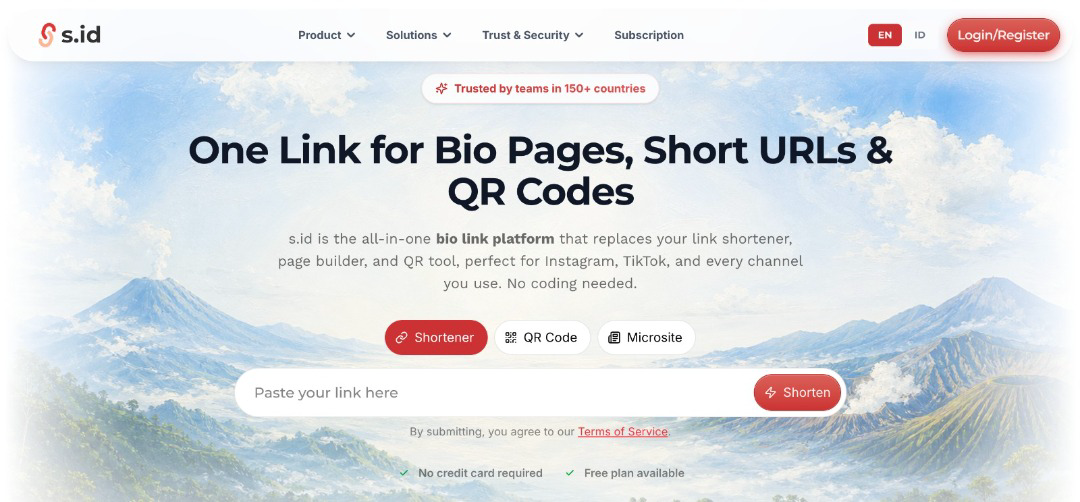
- Once the page loads, find the Shortener menu.
- Paste your long Google Form link into the field provided.
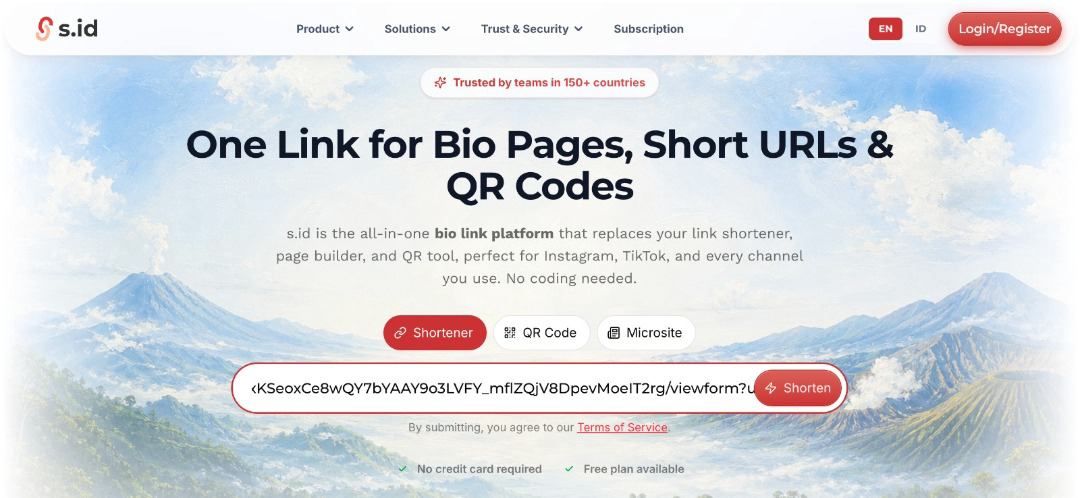
- Click the Shorten button.
- Wait a few seconds, and your short link will appear.
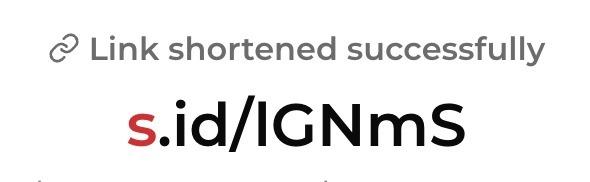
- Copy the short link.
- Open the short link in a new tab to make sure it works correctly.
- If a confirmation page appears, click Continue. You’ll be taken to your Google Form as usual.
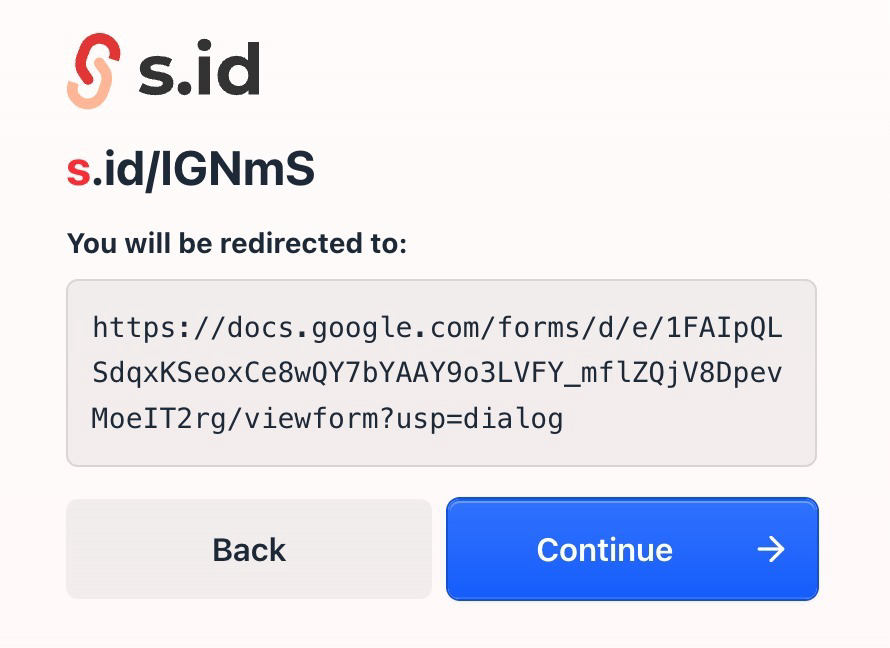
That’s it! Your long link has been shortened and is ready to share.
Why Does a Confirmation Page Appear?
When you use s.id without logging in, it may show an intermediate page before visitors are redirected to the destination. This is normal, and you only need to click Continue. The page may change from time to time, depending on the service’s policies.
For respondents, this page can sometimes feel like an unnecessary extra step. If you’d like a link that opens directly without confirmation, keep reading to learn how to use an s.id account.
Pros and Cons of the No-Login Method
DetailsProsQuick, no sign-up needed, ideal for occasional useConsYou can’t rename the link, a confirmation page appears, and it’s less convenient for shortening many links at once
Before sharing the link with respondents, it’s always a good idea to test it first on another device or in incognito mode to make sure the form opens correctly.
How to Shorten a Google Form Link with s.id (With Login)
If you create Google Forms often, logging in to s.id lets your links open directly without a confirmation page, and makes it easier to shorten many links at once.
Above, we covered the quick method that needs no account. It’s convenient, but it has two drawbacks: visitors see a confirmation page, and you have no place to manage the links you’ve created. This second method solves both.
Step-by-Step: Shortening Your Link After Logging In
- Open your browser and go to s.id.
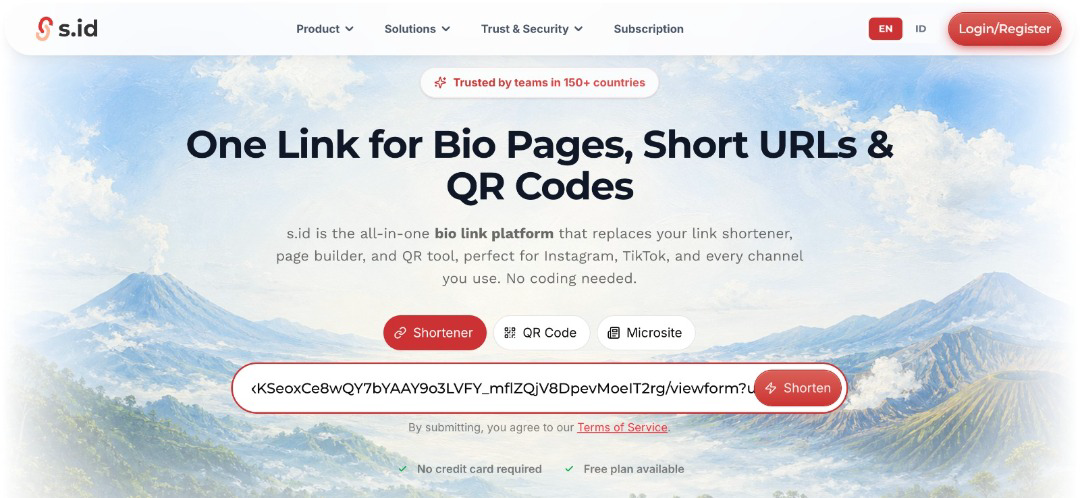
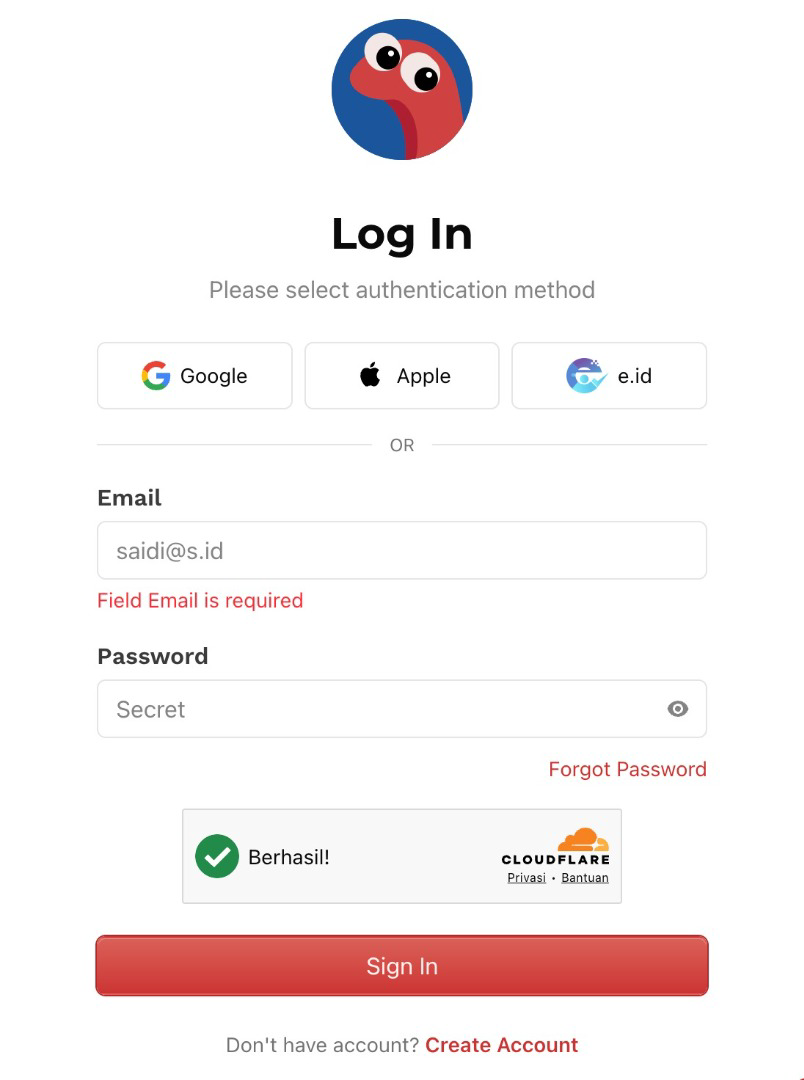
- Click Login. If you don’t have an account yet, choose Create Account and follow the sign-up steps.
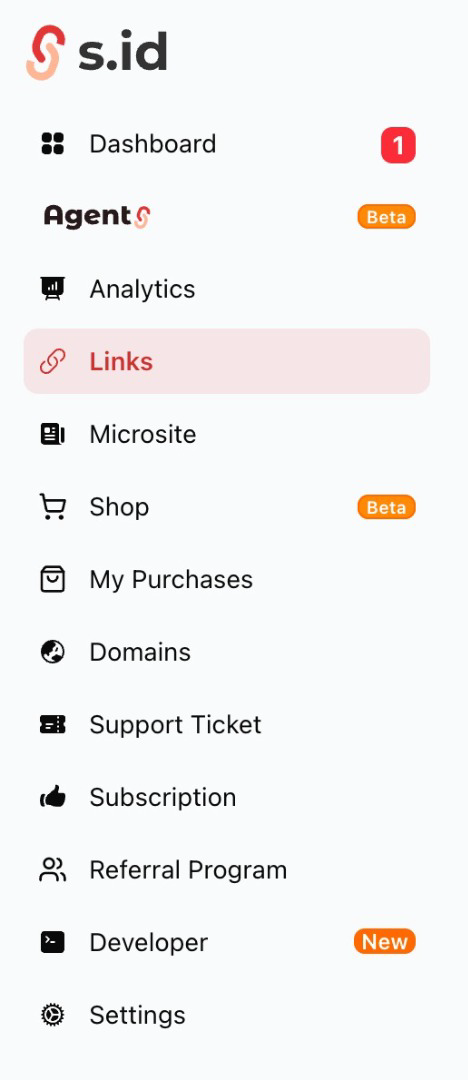
- Once you’re logged in, open the Shortener(Links) menu or the button for creating a new link.
- Paste your long Google Form link.

- Click Shorten it!.
- Copy the short link that appears.
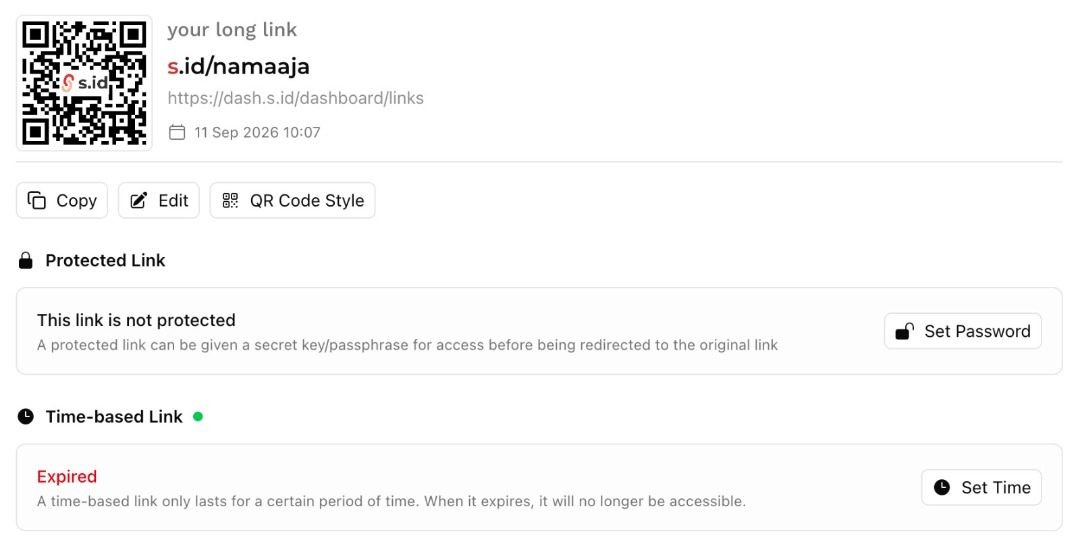
- Open it in a new tab to test it. Your form should now open right away, with no confirmation page.
- Congratulations, your link has been created! You can open it through the QR code or the short link, and you can also edit the title and link name however you like.
Menu names and layouts may differ slightly from the description above, since the service may update its interface from time to time. The core steps stay the same: log in, paste your link, and shorten it.