
Have a lot of information to display on your microsite, but feel like it’s too long to fit on a single page?
Now you can organize it more neatly with Pages, a new component in s.id Microsite that lets you combine multiple microsites into one mini website with the same navigation menu.
This means visitors don’t have to return to the original link to move between pages. They can simply use the navigation menu to explore all the pages within your microsite.


What Is Pages?
Pages is a component that allows you to combine multiple microsites into a single navigation menu, making it easier for visitors to move from one page to another.
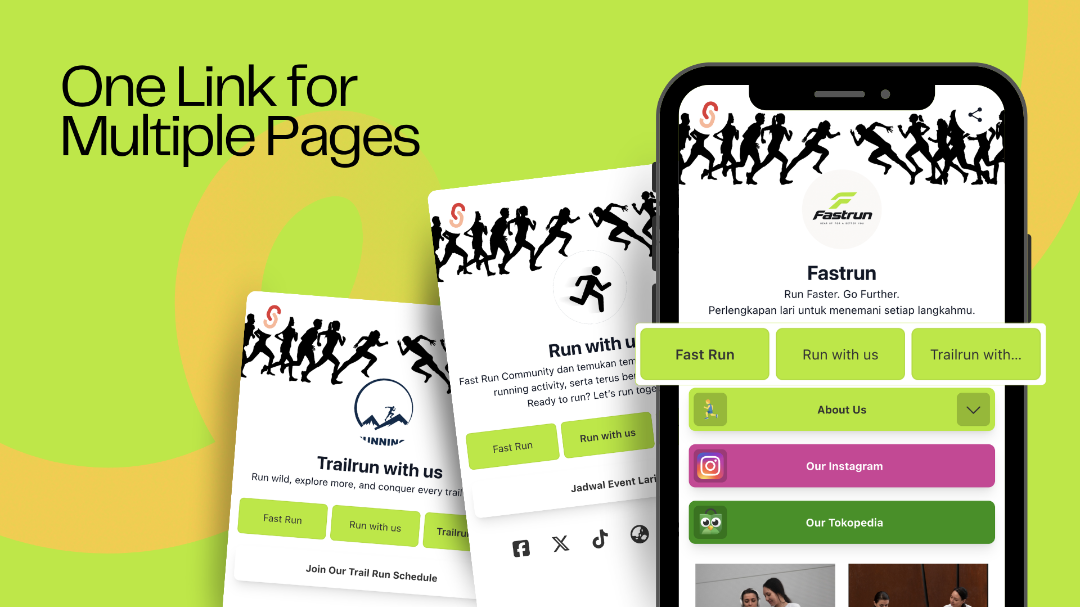
For example, on the Fastrun microsite, you can set one microsite as the Home page and connect it with other microsites as child pages, such as:
🏠 Fastrun — main page
🏃 Fast Run — Fast Run information page
👟 Run with Us — community or running activities page
🏔️ Trailrun with Us — dedicated trail running page
With Pages, all of these pages can be displayed in one navigation menu, as shown in the example above. Each page still has its own URL, but visitors can move between pages without having to return to the original link.
One main microsite, multiple connected pages.
One Menu for All Pages
One of the main functions of Pages is to create consistent navigation.
The same menu will appear on both the main page and its child pages. This allows visitors to move between pages without having to return to the original link.
This is especially useful for microsites with a lot of information, such as:
Business Profile
Home → About Us → Products → Location → Contact
Catalog
Home → Product Categories → Promotions → How to Order
Portfolio
Home → About → Portfolio → Projects → Contact
Create a New Page or Link an Existing Microsite
Pages gives you two ways to add pages.
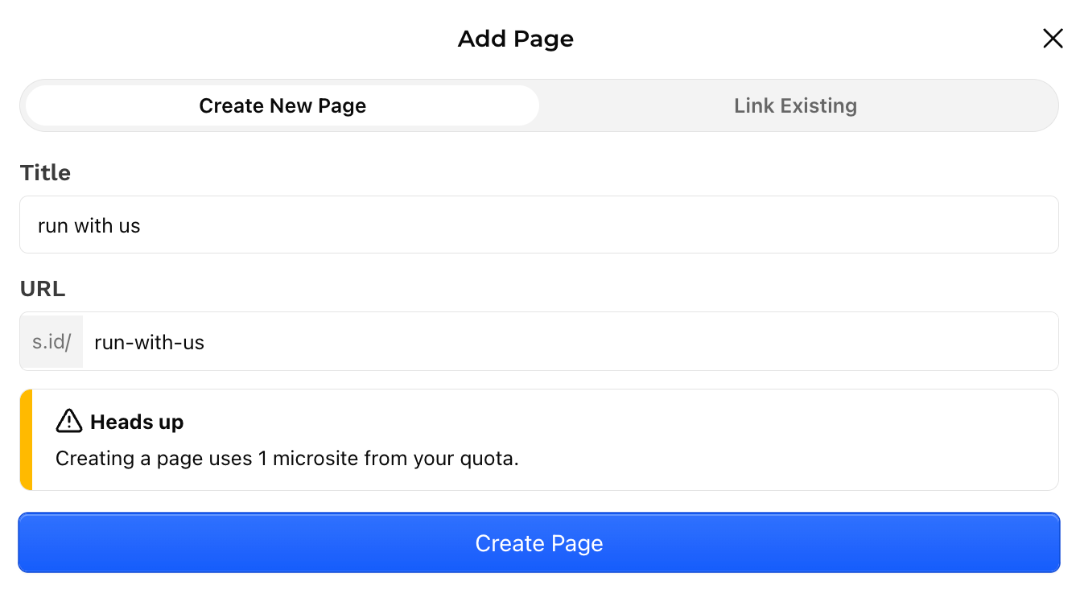
1. Create a New Page
You can create a new page by entering its title and URL address.
Each new page you create uses 1 microsite from your available quota.
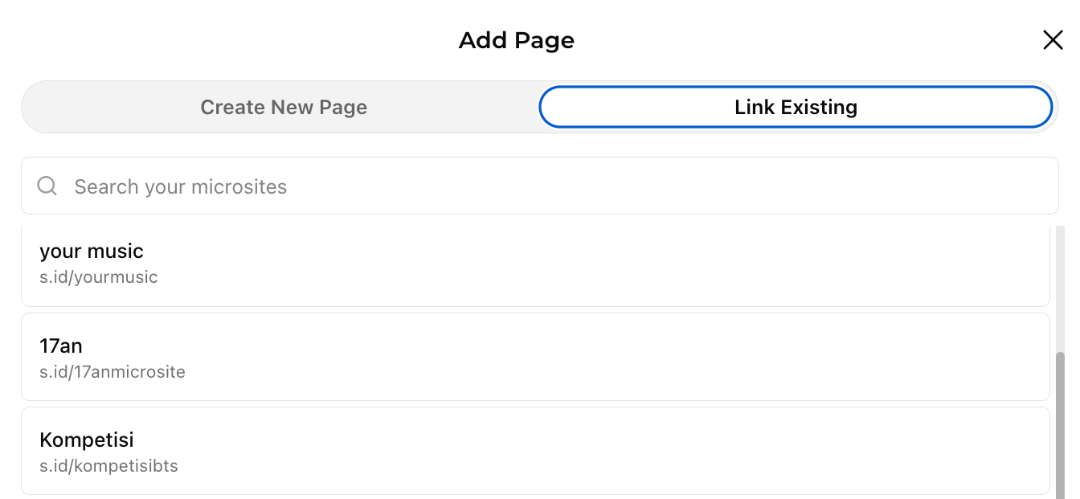
2. Link an Existing Microsite
Already have an existing microsite? No need to create a new one.
Simply select Link Existing to add a microsite you already have to your Pages navigation menu.
However, a microsite that already has its own Pages menu cannot be linked.
Customize Your Navigation
Pages allows you to customize the navigation menu to match your microsite’s needs and design.
Menu Styles
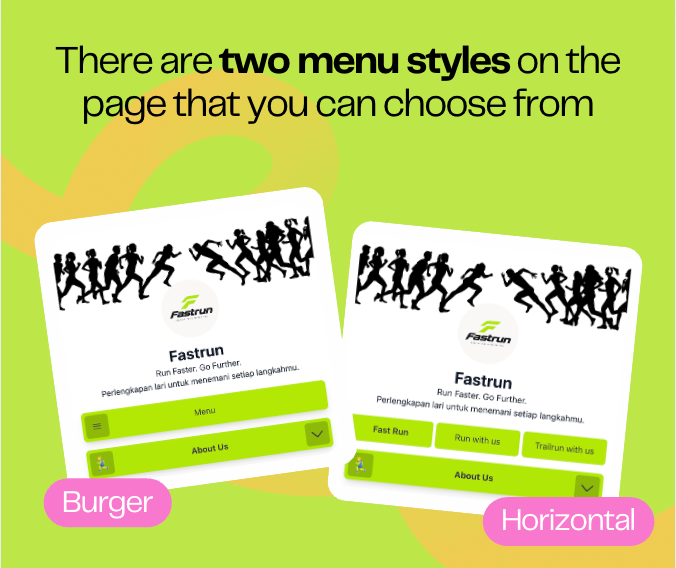
There are two navigation styles available:
- Burger — the menu is displayed as a button that can be opened to show the list of pages.
- Horizontal — pages are displayed as a row of tabs that visitors can select directly.
For the Burger style, you can also customize the menu icon and label using your own image and text.
You can also adjust the menu background color to better match your microsite’s design.
How to Edit or Remove a Page
Managing pages that have been added is easy.
To edit a child page, simply open it through the microsite page and edit it just like you would edit a regular microsite.
If you want to remove a page from the menu, simply click the trash icon on the page you want to remove.
Note: Removing a page from the menu does not delete the microsite itself. The microsite will remain available and will still count toward your quota until you delete it from the Dashboard.
One Microsite, One Pages Component
The Pages component can only be added once per microsite.
It will always appear at the top of the microsite, directly below the profile.
This keeps the page navigation easy for visitors to find.
Build a More Structured Microsite with Pages
Not all information needs to fit into a single page.
With Pages, you can combine multiple microsites into a more structured experience, complete with a navigation menu that makes it easy for visitors to move between pages.
From business profiles and product catalogs to portfolios, you can organize your content into multiple pages while keeping everything connected through one navigation menu.
One mini website. Multiple pages. One navigation.